Search results: Talent Compass
The Talent Compass is where the magic happens. Our proprietary search engine evaluates every candidate in your initial pool one by one against your specific requirements. Each profile gets a Match score (e.g., 100%), and candidates are organized from highest to lowest fit, so the strongest matches rise to the top. Counts like 250 profiles shown keep you oriented in the size of your pool.
Reviewing Candidates
To begin reviewing your results, you have two primary ways to interact with the data:
- Detailed CV View: Click on a candidate's name to open the Profile Sidebar. This provides a detailed history of the candidate's professional background.
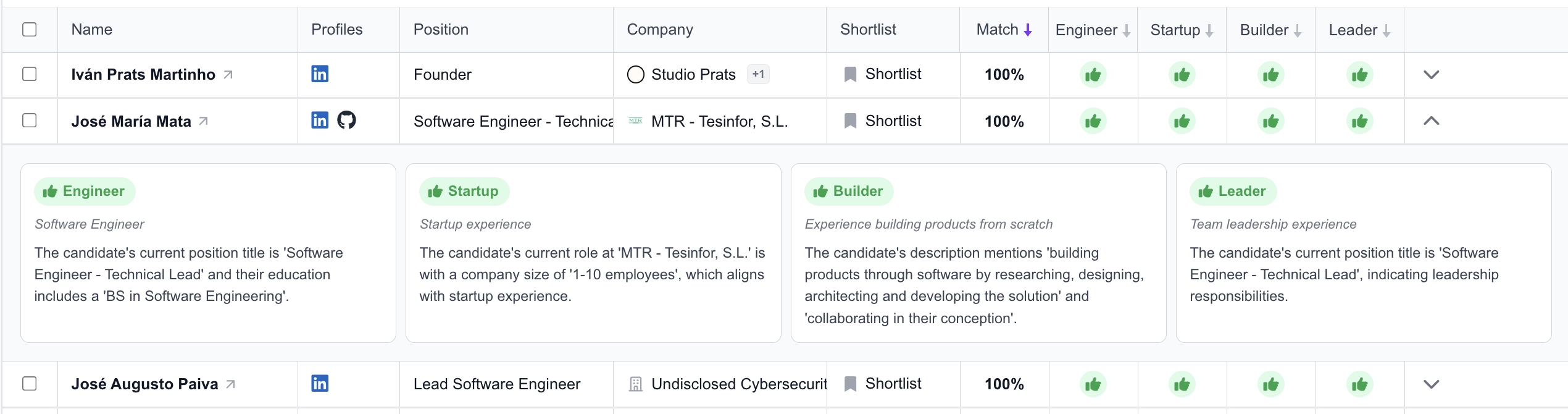
- AI Evaluation View: Click anywhere else on a result row to open the evaluations. Here, you will find a concise AI-generated explanation detailing exactly why that profile matches your specific criteria.
Understanding AI Evaluations
An evaluation typically takes between 5 and 45 seconds, depending on the number of profiles and server load. Each profile receives a rating for every criterion:
- Green Icon (Good Fit): The criterion is clearly met, either through an explicit mention or AI inference.
- Yellow Icon (Potential Fit): There are indications the criterion is met, but there is some ambiguity or missing information.
- Red Icon (No Fit): There is no evidence in the available information that the criterion is met.
Tip
Clicking on a result in the table reveals the AI's reasoning, such as specific experiences mentioned in the profile that justify the rating.
Key Features & Customization
Sorting and Ordering
You can re-order your results based on any evaluation column, including the overall Match score, Likely to Switch probability, or individual criteria.
- Click the column header to sort.
- A purple arrow indicates which criterion is currently active and the direction of the sort.

Customizing Your Table
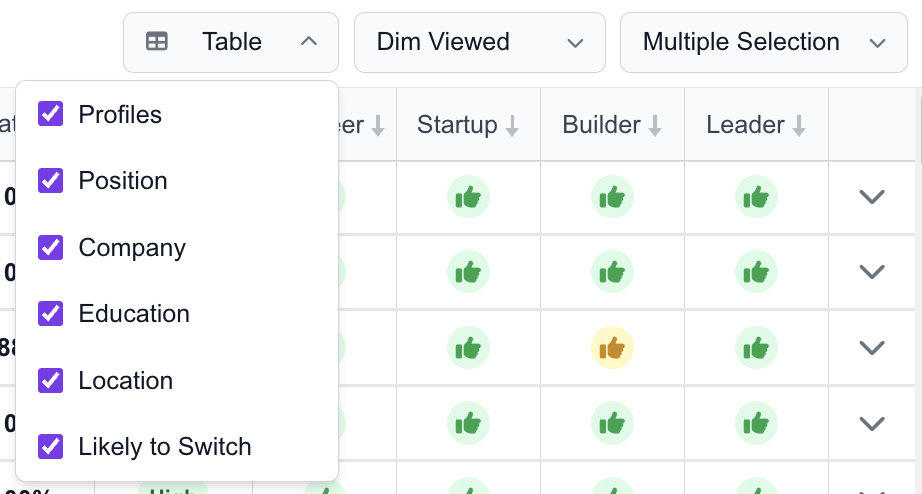
You can edit which columns are visible to suit your workflow, including:
- Social Links, Position, and Company.
- Location and Education.
- Likely to Switch: Our proprietary equation uses 48 dynamic signals and trend analysis to predict which candidates are most likely to consider a new opportunity.
Display Options
- Dim Viewed: Choose to dim rows you have already reviewed or show all profiles clearly.
Reviewing Results (Revision Mode)
Click Review to open your ranked talent pool and evaluate candidates one at a time. This view pairs the candidate's full CV with the AI's analysis of how they measure against your criteria, so you can judge fit with full context. It is the most efficient way to clear an entire list in an orderly manner.
- Candidate Profile: The left panel shows the candidate's complete CV: name, location, education, and a full Experience timeline with tenure breakdowns (Current, Average, Total). A Likely to Switch indicator estimates how open they may be to a move, and tabs let you switch between Profile, Contact, Activity, and Notes.
- Criteria Analysis: The center panel shows exactly how the AI evaluated the candidate against each of the criteria you defined. Each criterion gets a clear assessment with a short, evidence-based explanation drawn from the candidate's actual experience, so you can see why they matched.
- Add to Shortlist: If you like the profile, click Add to Shortlist to move them into your workflow.
- Add to Sequence: You can also drop the candidate straight into an outreach Sequence from here.
- Skip: If they're not a fit, use Skip (or the arrow) to move on to the next candidate.
- Navigation & Progress: A counter (e.g., 1 / 250) tracks your position in the queue, the arrows move you between candidates, and Skip viewed profiles lets you hide people you've already seen. Click Finish Review when you're done.
Taking Action
- Review: Click Review to work through your ranked talent pool one by one in Revision Mode.
- Shortlist: If a profile looks promising, click the Shortlist button from the table, the sidebar, or Revision Mode. The candidate is instantly added to your active project.
- Export: Move candidates directly to your ATS via several integrated methods.
- Bulk Actions: Use the checkboxes on the left or the Multiple Selection button to shortlist or export candidates in batches.
Iterating for Perfection
If the initial results aren't exactly what you need, you can continue to refine your search:
- Adjust Filters: Change the "universe" (Location, Seniority, etc.) at the top of the page, or use Edit search to adjust your setup.
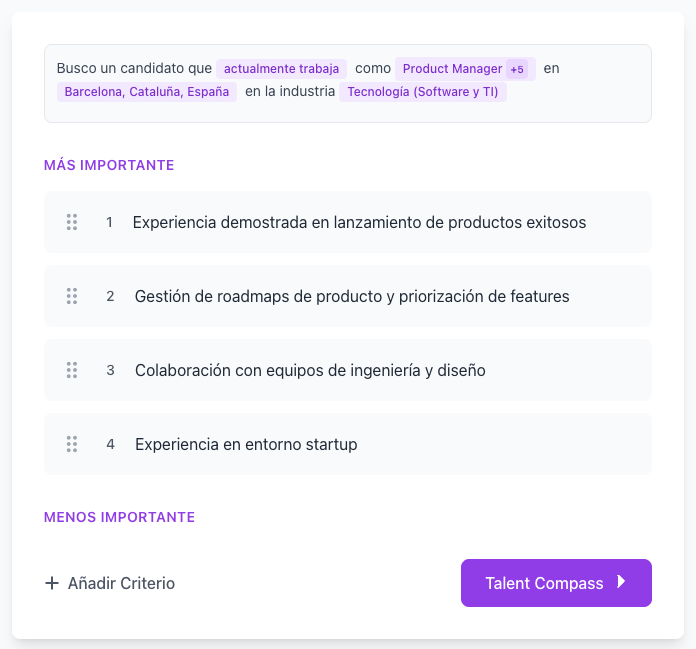
- Edit Criteria: Adjust, add, or remove the requirements the AI is evaluating, then re-run the Talent Compass to update your rankings.
- New Search & Share: Start fresh with New Search, or use Share to send results to a colleague.