Shortlist
The Shortlist is the space where you save and organize all the candidates you are interested in for an open process, whether they arrived from Agent Mode or Classic Search.
Each shortlist is linked to a project and works as a control center or mini ATS, from which you can manage and coordinate the entire recruitment process.
All actions within the shortlist are collaborative: any user with access to the project can view, edit, and work on the same candidates.
From the Shortlist you can:
- Track the status of each candidate through your hiring pipeline
- Reveal their contact details
- Enroll candidates into outreach Sequences
- Export profiles to PDF, CSV, or your ATS
Tracking Candidate Status
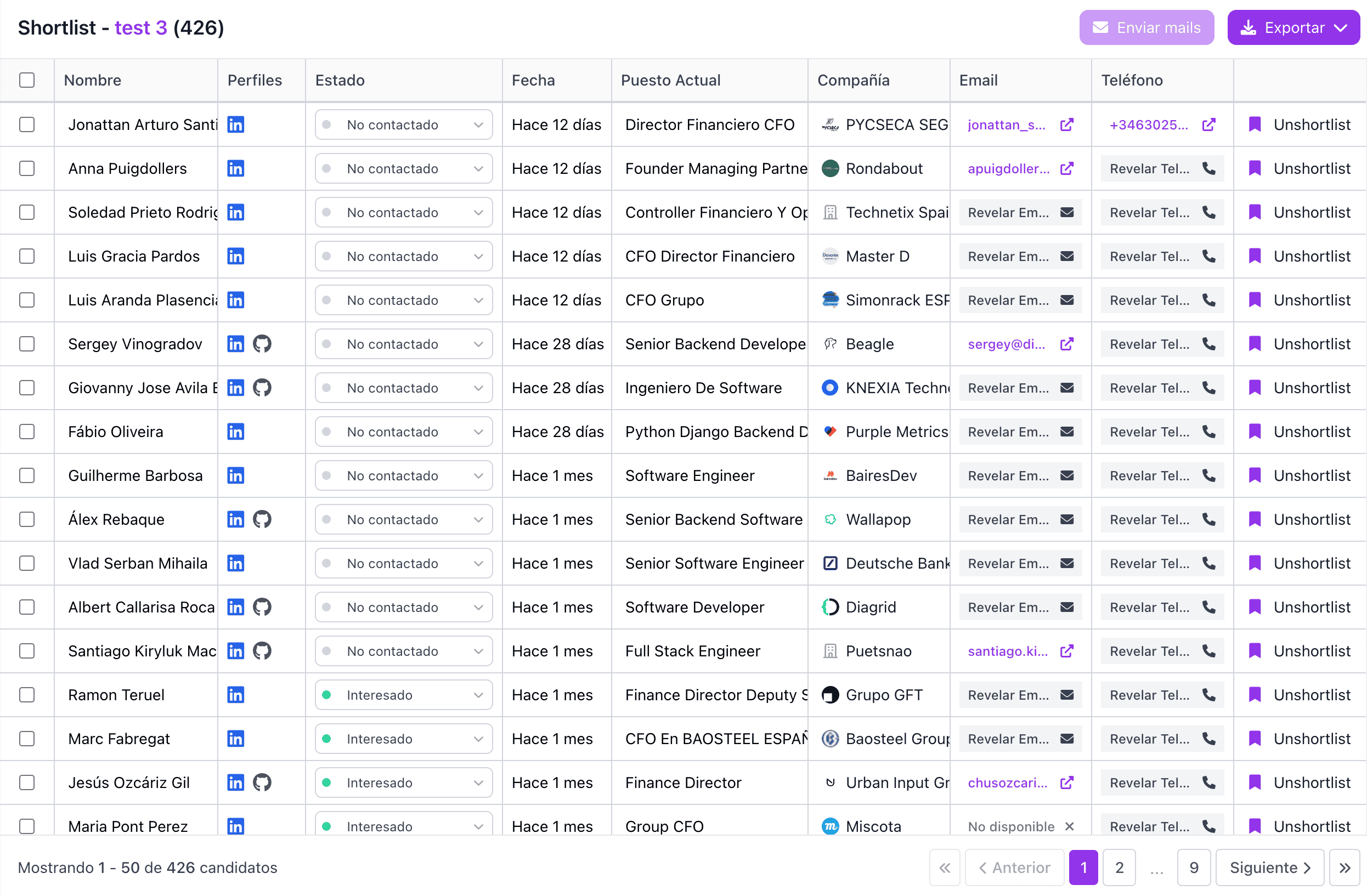
Each candidate displays a live status that reflects their stage in your process, and, when they're enrolled in a sequence, how your outreach is progressing: for example, Out (message sent/pending), Contacted, LinkedIn Connect (connection not yet accepted), and Replied. This lets you see at a glance who has responded, who has been reached, and who hasn't connected yet.
- Candidate Details: Alongside status, each row shows key information (Name, Socials, Date of last activity, Current Position, Company, and quick Contact options), giving you full context for every person in the list.
- Search & Filter: Use the search bar or Filter to narrow the list down to a specific status, company, or candidate, making it easy to focus on the people who need attention.
- Team Visibility: Status changes are visible to the entire team, facilitating collaborative work and avoiding duplicates.
Table & Kanban Views
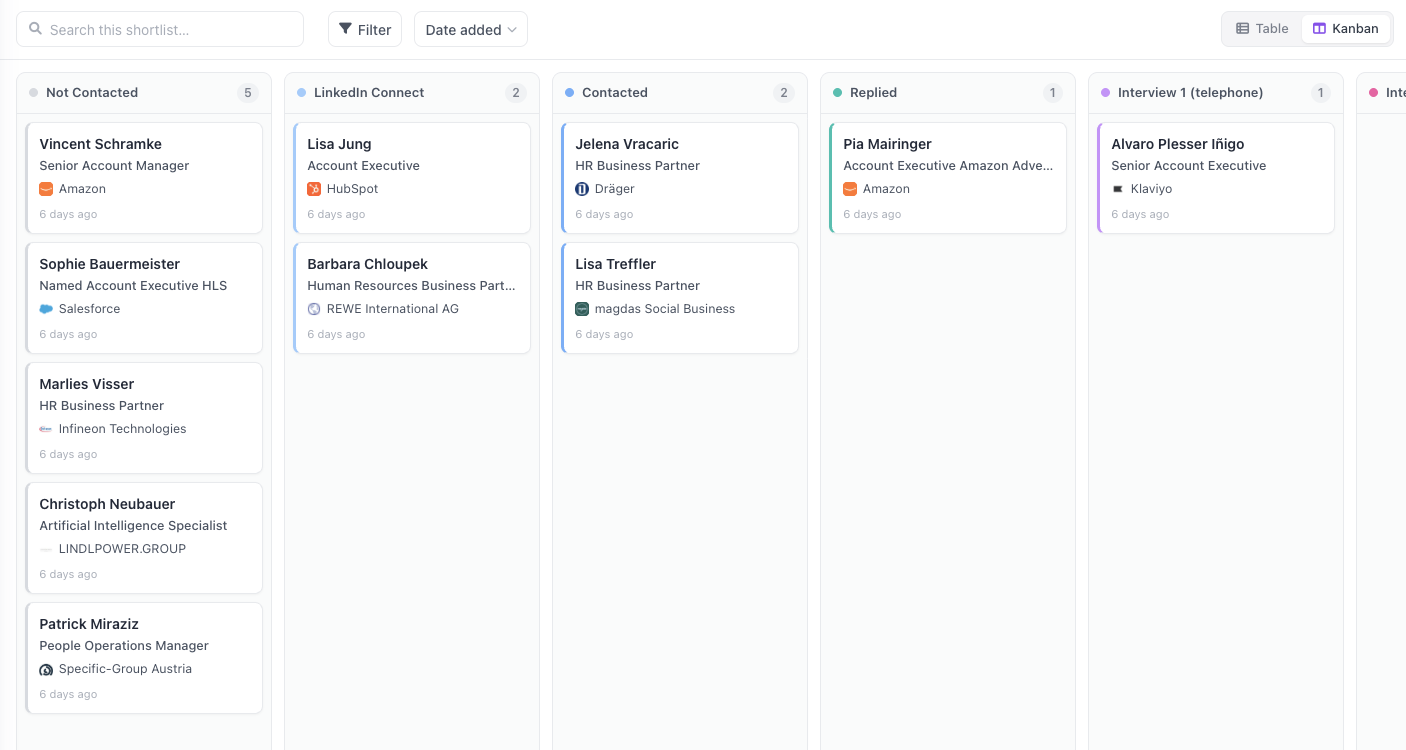
Switch between a Table layout for detailed scanning and a Kanban layout that organizes candidates into columns by status, giving you a visual, pipeline-style overview where each column shows a live count of how many candidates sit at that stage.
Editable, Custom Statuses
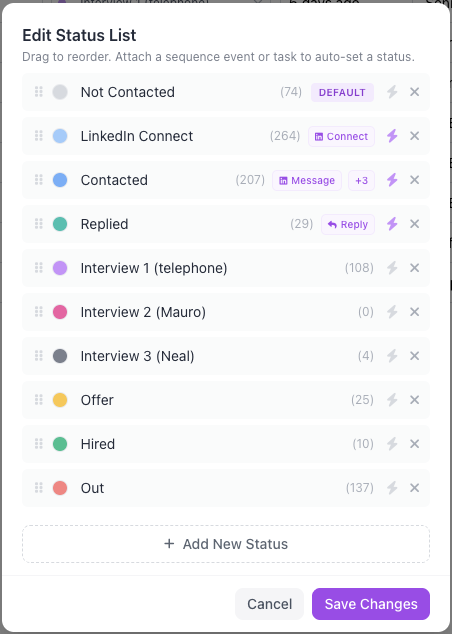
Status isn't fixed. You can update any candidate's status as they move through your process, and, crucially, customize the status list itself to match your exact hiring workflow.
For example, a pipeline might run from Not Contacted → LinkedIn Connect → Contacted → Replied, through custom interview stages like Interview 1 (telephone) and Interview 2, and on to Offer, Hired, or Out.
Use Edit Status List to rename, add, or remove these stages so the pipeline reflects how your team actually works.
Add to Sequence
Directly from the shortlist, you can select candidates and Add to Sequence, feeding new people into your outreach flow without leaving the page.
Bulk Actions and Export
When you select multiple profiles using the checkboxes on the left, the bulk actions menu is enabled.
This menu allows you to perform in bulk the same actions that already exist at the individual level in the table, saving time when working with multiple candidates at once.
Additionally, from here you can copy candidates to other projects, which allows you to move or reuse profiles between different shortlists quickly.
Tip
If you hold down the Shift key while selecting two profiles, all candidates between them will be automatically selected, making multiple selection easier.
Once profiles are selected, you can also:
- Export them to PDF
- Export them to CSV
- Send them directly to your ATS, if connected
This lets you take a snapshot of your candidates, along with their current statuses, out of Taleva whenever you need to share or analyze it externally. See Export Options for details.
Best for: understanding how your outreach is progressing on a candidate-by-candidate basis, tailoring your pipeline stages to your own process, and identifying who to follow up with next.