Sequences
Sequences let you automate multi-step outreach to candidates across LinkedIn and email, so you can engage at scale without losing the personal touch of one-to-one messaging. Taleva sends every message from your own accounts, which keeps your outreach authentic and ensures replies land back in your familiar inbox.
Before You Start: Connect Your Accounts
Every sequence runs on the channels you've connected under Settings → Integrations. At minimum, you'll want to connect LinkedIn Messaging, since it powers the sequencing and automation features.
- Email: Connect your inbox to send email steps directly from Taleva. See Email Integrations.
- LinkedIn Messaging: The core integration for Sequences. It lets Taleva send connection requests and messages on your behalf. See LinkedIn Integration.
The Sequences Overview
Once your accounts are connected, the Sequences page becomes your command center. It gives you a complete, at-a-glance view of every outreach campaign you're running (active, paused, or stopped), along with a forward-looking schedule of what's queued to send. From here you can monitor performance and manage any sequence without digging into it.
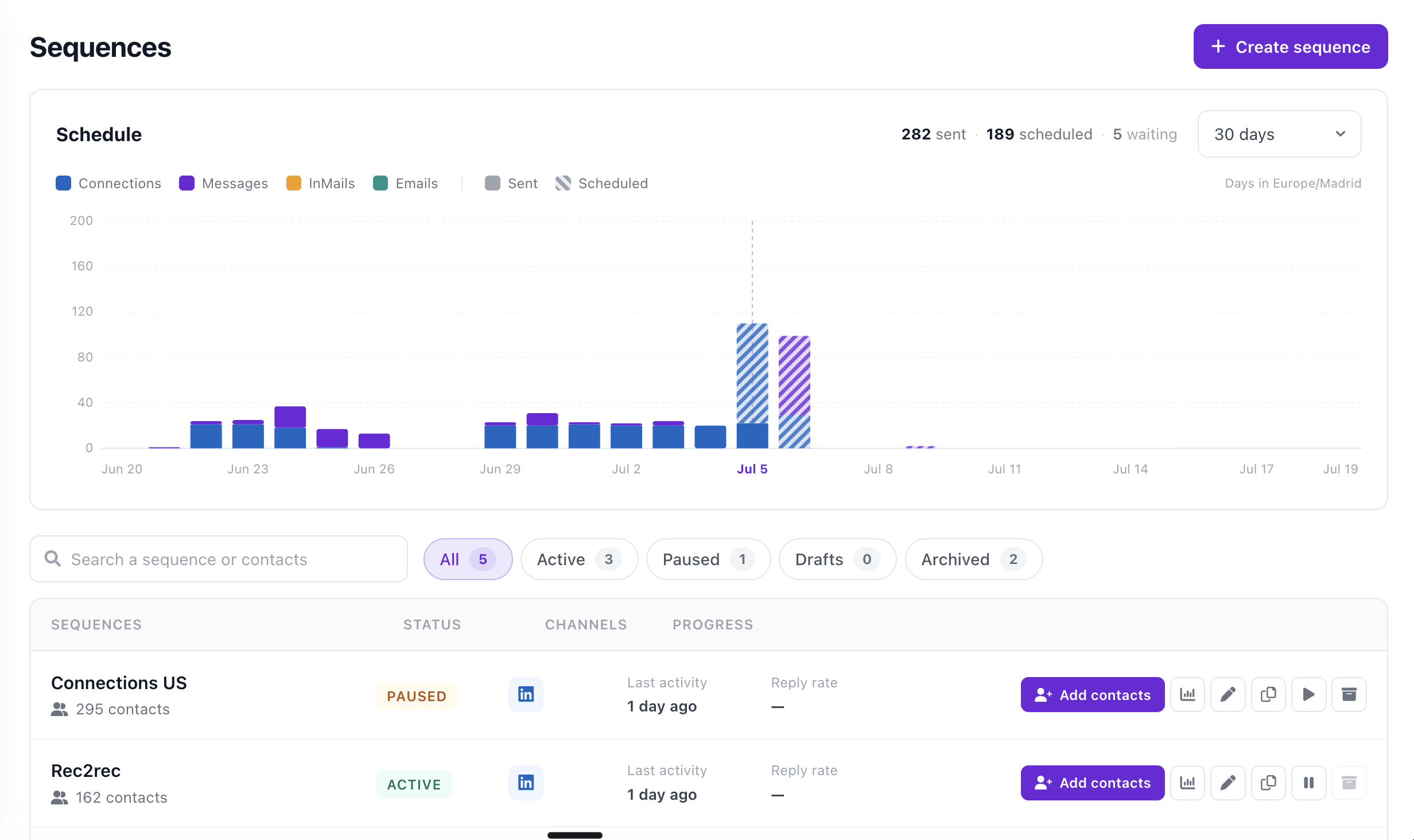
- Create Sequence: The + Create Sequence button in the top-right corner is your starting point for building a new outreach flow.
- Schedule Chart: The graph at the top visualizes your outreach activity over a selected window (e.g., 30 days). Color-coded bars break down each touch type (Connections, Messages, InMails, and Emails) and distinguish what's already been Sent from what's still Scheduled. Summary counts (e.g., 254 sent, 231 scheduled, 47 waiting) give you an instant read on volume, and the timezone is noted so your timing is always clear.
- Status Filters: Quickly filter your list by state (All, Active, Paused, Drafts, or Archived) with a live count next to each, so you can zero in on exactly the sequences you want to review.
- Search: Use the search bar to find a specific sequence or contact instantly, which is handy once you're running many campaigns at once.
- The Sequence List: Each row summarizes one sequence at a glance, showing its Status (Active/Stopped), the Channels it uses (e.g., LinkedIn), and Progress details like last activity and reply rate, so you can spot your top and bottom performers immediately.
Quick Actions
For each sequence in the list, a set of quick actions lets you manage it without leaving the page:
- Add Contacts: Enroll new candidates into the sequence.
- Analytics: Open detailed performance metrics for that sequence.
- Edit: Adjust the sequence's steps, timing, or messaging.
- Duplicate: Copy an existing sequence as a starting point for a similar one, ideal for reusing a proven structure.
- Pause: Temporarily halt sending without losing your progress or enrolled contacts.
- Archive: Move a finished or inactive sequence out of your active list while keeping its data.
Best for: monitoring overall outreach health, comparing sequence performance, and making quick adjustments across all your campaigns from one place.
Managing Replies
Once your sequences are running and candidates start responding, you don't need to leave Taleva to keep the conversation going. All incoming replies are centralized so you can manage your outreach and your responses in one place.
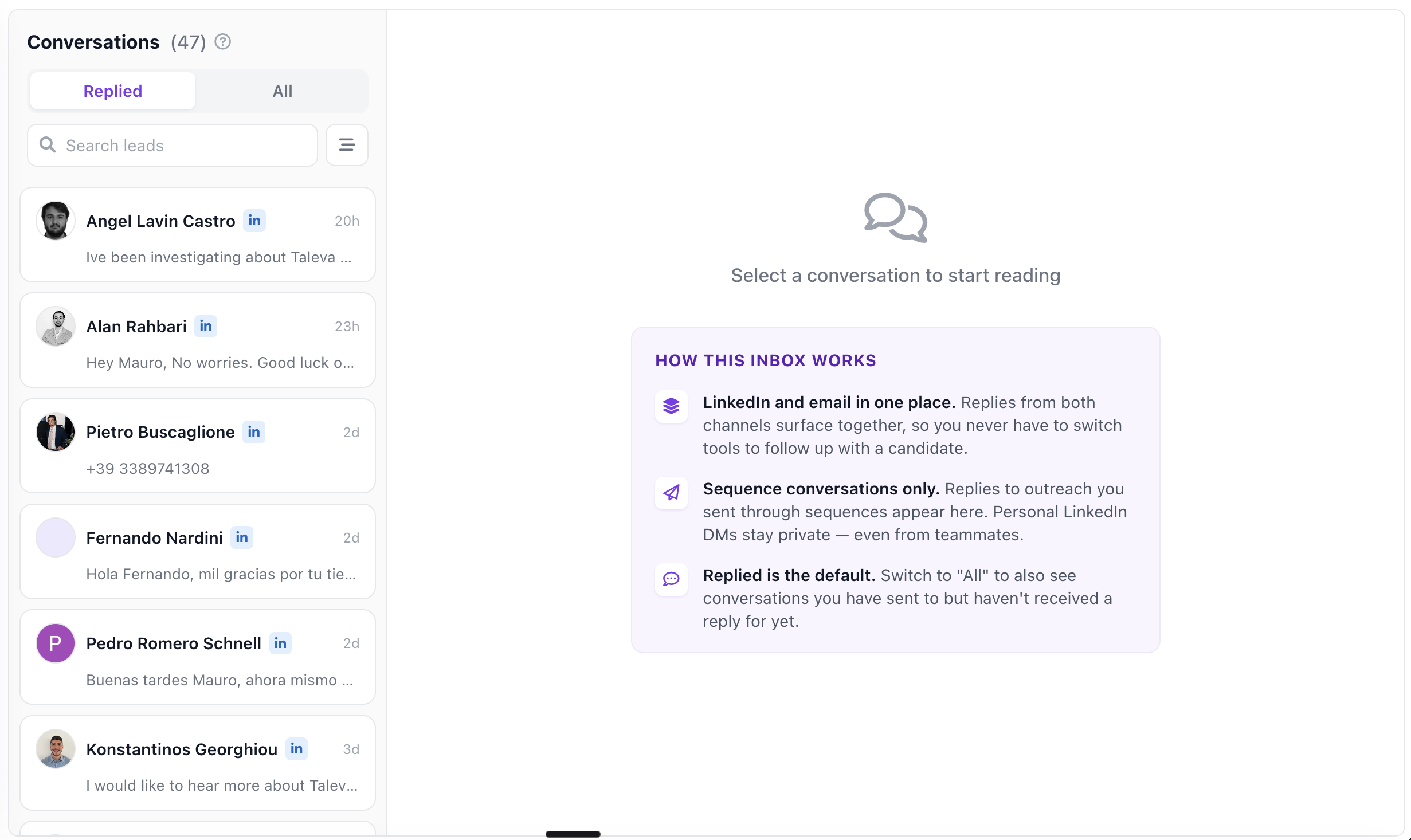
- Inbox: Navigate to Inbox in the left-hand menu to view messages from candidates who have responded to your sequences. From here you can read and reply to them directly within Taleva, keeping your entire conversation history in one spot.
- Sequences: The Sequences entry in the same left menu takes you back to your overview page at any time, so you can move easily between monitoring your campaigns and handling replies.
Best for: staying on top of candidate responses and replying promptly without switching between LinkedIn, email, and Taleva.
Tracking Candidates
To see where each individual candidate stands in your outreach (who's been contacted, who's connected, who replied), head to the Shortlist. It gives you a per-person status breakdown across Table and Kanban views.