Shortlist & Contact
The Shortlist is the space where you save and organize all the candidates you are interested in for an open process.
Each shortlist is linked to a project and works as a control center or mini ATS, from which you can manage and coordinate the entire recruitment process.
All actions within the shortlist are collaborative: any user with access to the project can view, edit, and work on the same candidates.
From the Shortlist you can:
- Track the status of each candidate
- Reveal their contact details
- Send personalized emails at scale
- Export profiles to PDF, CSV, or your ATS
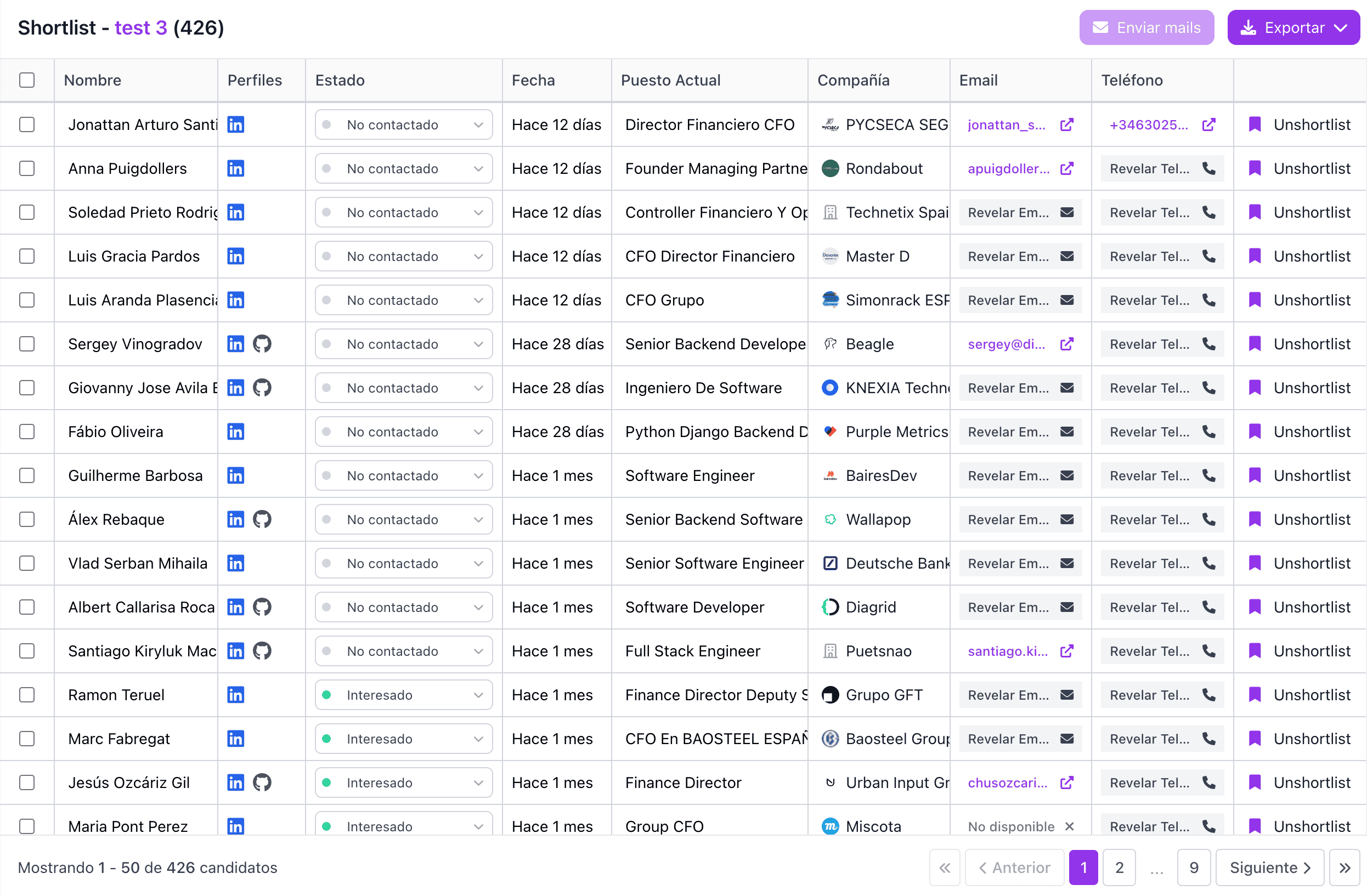
Status
The Status section allows you to indicate which stage of the recruitment process each candidate is in.
Using a dropdown selector, you can assign and update the candidate's status, which helps you:
- Keep the process organized
- Know where each candidate stands
- Coordinate better with other team members
Status changes are visible to the entire team, facilitating collaborative work and avoiding duplicates.
Sending Emails
To send emails, you first need to select one or more candidates using the checkbox on the left side of each row.
Once selected, click "Send email".
Before sending:
- You will need to reveal the candidate's email if it is not yet available
- You can create a template with variables to personalize the message at scale
From Settings, you can define:
- Whether emails are sent to the personal email, professional email, or both
- Which email account to use
Emails are sent directly from your own email account, which you will need to configure beforehand in Settings.
To avoid spam issues, emails are sent in a staggered and controlled manner.
Bulk Actions and Export
When you select multiple profiles using the checkboxes on the left, the bulk actions menu is enabled.
This menu allows you to perform in bulk the same actions that already exist at the individual level in the table, saving time when working with multiple candidates at once.
Additionally, from here you can copy candidates to other projects, which allows you to move or reuse profiles between different shortlists quickly.
Tip
If you hold down the Shift key while selecting two profiles, all candidates between them will be automatically selected, making multiple selection easier.
Once profiles are selected, you can also:
- Export them to PDF
- Export them to CSV
- Send them directly to your ATS, if connected